How to Host OpenWebUI: The Complete No‑Tech Guide
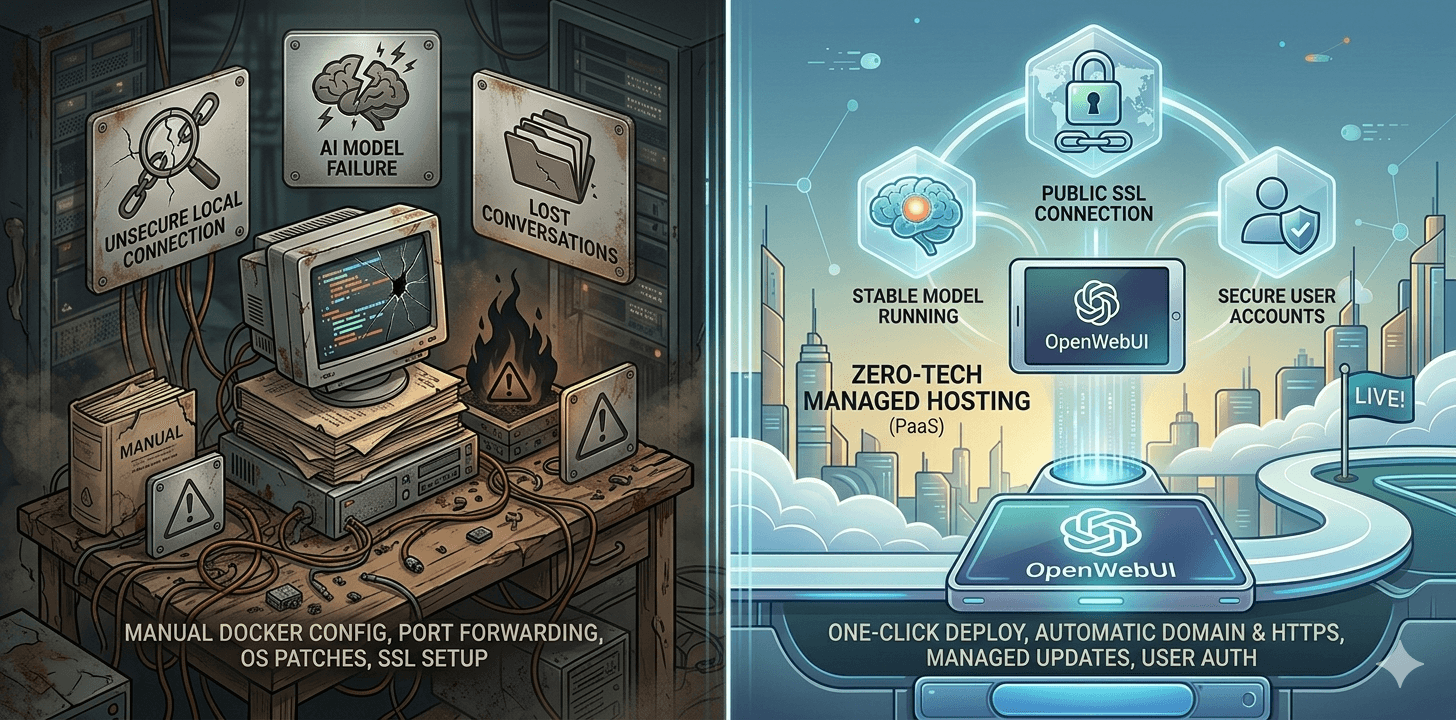
You’ve seen the headlines. ChatGPT is powerful, but it comes with trade‑offs: your conversations may be used for training, you’re locked into a single model, and costs can spiral when your team adopts it.
Enter OpenWebUI—the open‑source, self‑hostable interface that gives you a private ChatGPT alternative. It works with any AI model you choose, keeps your data entirely on your own infrastructure, and includes advanced features like document uploads, web search, voice input, and team management.
But for years, getting OpenWebUI running meant wrestling with Docker, SSL certificates, and command lines. In 2026, that’s no longer the case. Whether you want to run it on your laptop, spin up a VPS, or go completely serverless, there’s a path that fits your technical comfort level.
This guide covers every way to host OpenWebUI—from local install to one‑click managed hosting—so you can choose the method that gives you the most value for your time.
What OpenWebUI Is and Why People Host It
OpenWebUI (often styled OpenWebUI) is a free, open‑source web interface for interacting with large language models. It started as a simple alternative to ChatGPT, but today it’s a full‑fledged platform used by thousands of individuals, startups, and enterprises.
OpenWebUI scales from a personal assistant to an enterprise‑grade AI platform. For many users, the real decision is not whether it is powerful enough, but whether it is a better fit than ChatGPT for privacy, flexibility, and long-term cost.
Why host it yourself?
- Privacy – Your conversations, uploaded documents, and usage data never leave your server. No one trains on your prompts.
- Model freedom – Use OpenAI, Anthropic, Google, or local models via Ollama—all in the same interface. Switch models mid‑conversation.
- Advanced features – Document upload with RAG (Retrieval‑Augmented Generation), web search, voice input/output, user management, and even custom tools—all included.
- Team collaboration – Create shared workspaces, assign roles, and give your team a private AI assistant without per‑user fees.
- Cost control – Pay only for model API calls (or nothing if you run local models).
OpenWebUI scales from a personal assistant to an enterprise-grade AI platform. For many users, the real decision is not whether it is powerful enough, but whether it is a better fit than ChatGPT for privacy, flexibility, and long-term cost.
Method 1: Local Install on Your Laptop (and Its Limitations)
The quickest way to test OpenWebUI is to run it directly on your own computer. This is great for learning, but it’s not a long‑term solution.
How to run it locally
If you have Docker installed, you can pull the official image and run it with a single command:
docker run -d -p 3000:8080 --name open-webui --restart always ghcr.io/open-webui/open-webui:mainThen open http://localhost:3000 in your browser. You’ll need to provide an API key for a cloud model (like OpenAI) or run a local model via Ollama.
If you prefer not to use Docker, you can install it directly with Python:
git clone https://github.com/open-webui/open-webui.git
cd open-webui
pip install -r requirements.txt

python app.py
But this requires managing Python dependencies and environment variables manually.
Why this isn’t a production setup
- Your laptop must stay on – The moment you close the lid, your assistant disappears.
- No public access – You can’t share it with teammates or access it from outside your home network.
- Resource constraints – Most laptops aren’t designed to run a 24/7 service.
- No security – No SSL, no user management, no backups.
Local install is perfect for testing and development. But if you want a real, always‑on private AI assistant, you’ll need to host it somewhere else.
Method 2: Docker on a VPS (Technical Complexity Overview)
The traditional way to host OpenWebUI is on a virtual private server (VPS) using Docker. This gives you full control, but the technical complexity is significant.
What you’d need
- A VPS from DigitalOcean, Hostinger, Hetzner, Vultr, etc. (at least 2GB RAM, 4GB recommended)
- A domain name points to your server
- Basic Linux command‑line knowledge
- Docker and Docker Compose are installed
- An API key from your chosen model provider (if using cloud models)
The actual process (simplified)
- Provision the server – Choose Ubuntu 22.04/24.04, SSH in.
- Update the system –
apt update && apt upgrade -y - Install Docker –
curl -fsSL https://get.docker.com | sh - Create a directory –
mkdir open-webui && cd open-webui - Clone the repository –
git clone https://github.com/open-webui/open-webui.git. - Copy the environment template –
cp .env.example .env - Edit .env – Add your API keys and any custom settings.
- Run Docker Compose –
docker compose up -d - Configure SSL – Install a reverse proxy (Nginx, Caddy) and obtain Let’s Encrypt certificates.
- Open firewall ports – Allow HTTPS (443) and optionally HTTP (80).
- Persist data – Ensure the Docker volumes for the database are mounted outside the container.
- Monitor and update – Regularly check logs, pull new images, and restart.
For an experienced developer, this is a 2‑to‑5‑hour project. For a non‑technical user, it can take days—and often ends in frustration, which is why managed OpenWebUI hosting is often the more practical choice for people who want the benefits without the infrastructure work.
Common pitfalls
- Port conflicts – Port 3000 may already be in use.
- SSL certificate errors – Misconfigured reverse proxy or failed auto‑renewal.
- Database permission issues – SQLite or PostgreSQL is not writable by the container user.
- Environment variable typos –
OPENAI_API_KEYvsOPEN_AI_API_KEY.
The hidden cost of DIY
Even after you get it running, the maintenance never stops:
| Task | Frequency | Time |
|---|---|---|
| OS security updates | Weekly | 15–30 min |
| OpenWebUI image updates | Monthly | 30–60 min |
| Backup verification | Monthly | 30 min |
| SSL renewal check | Quarterly | 15 min |
| Troubleshooting | As needed | 1–3 hours |
At $50/hour, that’s $150–$250/month in hidden labour—far more than the $6–$12 server bill.
Method 3: One‑Click Managed Hosting
In 2026, you can skip all of that. Fully managed platforms let you deploy OpenWebUI without touching a terminal, configuring a server, or even knowing what Docker is.
These platforms are built specifically for open‑source AI tools. They handle the server, SSL, backups, updates, and monitoring, so you can focus on using Open WebUI.
What you get with managed hosting
- Automatic SSL – HTTPS certificates installed and renewed for you.
- Daily verified backups – They test restores, not just create backups.
- 24/7 monitoring with auto‑recovery – If something fails, it’s fixed before you notice.
- Automatic updates – OpenWebUI versions update after testing; no manual intervention.
- Dedicated resources – No noisy neighbours—your instance has guaranteed CPU and RAM.
- Direct human support – From people who actually know OpenWebUI.
Example: Deploying on Agntable
One such platform is Agntable, a purpose‑built managed hosting service for AI agents. Here’s how simple it is:
- Sign up – Visit Agntable and start a 7-day free trial.
- Select Open WebUI – From the agent catalogue, click “OpenWebUI.”
- Choose your plan – Pick based on expected usage (Starter: $9.99, Pro: $24.99, Business: $49.99).
- Name your instance – Give it a memorable name.
- Click “Deploy” – Wait about three minutes.
- Access your instance – You’ll receive a live HTTPS URL (e.g.,
yourname.agntable.cloud). - Add your API key – Log in and paste your model provider’s key
- Start chatting – Your private AI assistant is ready.
No terminal. No SSH. No Docker. Just a working OpenWebUI instance.
Connecting OpenWebUI to OpenAI, Claude, and Ollama APIs
One of Open WebUI’s greatest strengths is its flexibility. You can connect it to almost any model provider.
Cloud APIs (OpenAI, Anthropic, Google, etc.)
After logging in, click your profile icon → Settings → Connections. Enter your API key for the provider you want to use. OpenWebUI will automatically detect and add the available models.
For OpenAI, you need an API key from platform.openai.com. For Anthropic, get a key from console.anthropic.com. For Google Gemini, obtain it from makersuite.google.com.
Local models with Ollama
For a completely offline experience, you can run local models using Ollama. This requires a separate instance of Ollama running on the same server or a connected one.
If you’re using Agntable, you can deploy Ollama as a separate agent and then point your OpenWebUI instance to it. The result: a 100% private, no‑API‑key AI assistant that runs entirely on your infrastructure.
Mixed setup
You can even use multiple providers simultaneously. OpenWebUI lets you select which model to use per conversation—perfect for comparing outputs or using specialised models for different tasks.
How Much RAM/CPU You Actually Need
Resource requirements depend on usage, but here’s a practical guide based on real‑world testing:
| Use Case | Recommended Specs | Notes |
|---|---|---|
| Personal use, light chatting | 1 vCPU, 2GB RAM | Works, but may be slow with large documents or multiple users |
| Personal with local models (Ollama) | 2 vCPU, 4GB RAM | Local models need extra resources |
| Small team (3‑5 users) | 2 vCPU, 4‑8GB RAM | Handles moderate concurrency |
| Production / large team | 4 vCPU, 8‑16GB RAM | Smooth experience under load |
| Heavy RAG (document processing) | 4+ vCPU, 8+ GB RAM | Document ingestion is CPU‑intensive |
If you’re using managed hosting, you can start small and upgrade with one click—no downtime, no migration.
Advanced Features: RAG, Web Search, User Management
OpenWebUI isn’t just a chat interface. It includes powerful tools that make it a true productivity platform.
RAG (Retrieval‑Augmented Generation)
Upload PDFs, Word documents, or other files, and OpenWebUI will index them. You can then ask questions about the content, and it will retrieve relevant sections and include them in the context for the AI. Perfect for research, contract analysis, or internal knowledge bases.
Web Search
Enable web search to get up‑to‑date answers from the internet. OpenWebUI integrates with SearXNG, Brave Search, or other search engines. When a query requires recent information, the AI can pull live results.
Voice Input and Output
Speak to your assistant and hear responses. This is great for accessibility, hands‑free use, or when you’re on the go.
User Management
Create accounts for team members, assign roles (admin, user, etc.), and control who can see which models or workspaces, all without paying per‑user fees.
Custom Tools
OpenWebUI supports custom tool integrations—think of them as plugins that let the AI interact with external APIs, databases, or automation tools like n8n. You can build your own or use community‑made tools.
Comparison: Local vs VPS vs Managed Hosting
| Factor | Local Laptop | VPS (DIY) | Managed (Agntable) |
|---|---|---|---|
| Setup time | 5–15 minutes | 24–48 hours | 3 minutes |
| Always on | ❌ | ✅ | ✅ |
| Public access | ❌ | ✅ | ✅ |
| SSL/HTTPS | ❌ | Manual | Automatic |
| Backups | ❌ | You script | Verified daily |
| Updates | Manual | Manual | Automatic |
| Monitoring | ❌ | You set up | 24/7 with auto‑recovery |
| Support | Community | Community | Direct expert |
| True monthly cost | $0 + your time | $150–$500+ (incl. time) | $9.99–$49.99 flat |
| Resource guarantee | Shared | Shared (with noisy neighbours) | Dedicated |
Conclusion: Choose the Path That Matches Your Time
OpenWebUI is one of the most powerful tools you can run for private, flexible AI. But the way you host it should match your time and technical comfort.
- Local install – Great for testing, but not a permanent solution.
- Docker on a VPS – Full control, but high complexity and ongoing maintenance.
- One‑click managed hosting – Zero ops, flat pricing, and you’re up in minutes.
In 2026, you don’t need to become a sysadmin to enjoy the benefits of a private AI assistant. You just need to choose the right hosting method for you.
Ready to try the no‑tech way? Deploy OpenWebUI on Agntable in 3 minutes. Free 7‑day trial.